

Tactile Clock
Double click the power button of your device to vibrate the current time
- Developer
- Eric Scheibler
- License
- GPL-3.0-only
- Package
de.eric_scheibler.tactileclock- Category
- Time
- Latest version
- 2.6.2 · Jun 23, 2026
- Minimum Android
- Android 6
Screenshots
Description
This Android app vibrates the current time when the display is locked and you double-click the power button of your device.
How it works
Double-click the power button. This might take some practice to work reliably. Press slowly and deliberately. If you double-click too fast the system only recognizes a single click and turns the screen on instead.
The time vibration is structured as follows:
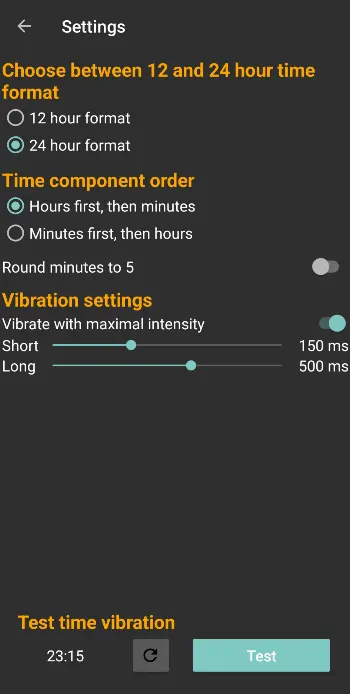
A short vibration stands for the digit 1 and a long one for the digit 5. The 2 is represented by two consecutive short vibrations, the 6 by a long and a short one and so on. The 0 constitutes an exception with two long vibrations.
Examples:
• 00:00 = -- --
• 01:18 = . . -...
• 02:51 = .. - .
• 10:11 = . -- . .
• 19:06 = . -.... -.
Explanation:
The time is processed digit by digit:
• . = short vibration
• - = long vibration
Leading zeros in the hour and minute fields are omitted.
Gaps:
To simplify the recognition of the vibration pattern, there exist three kind of gaps with different durations:
• []: A short gap between vibrations in the same digit
• [ ]: A medium gap for the separation of two digits within the hour and minute field
• [ ]: A long gap to split hours and minutes
Additional features
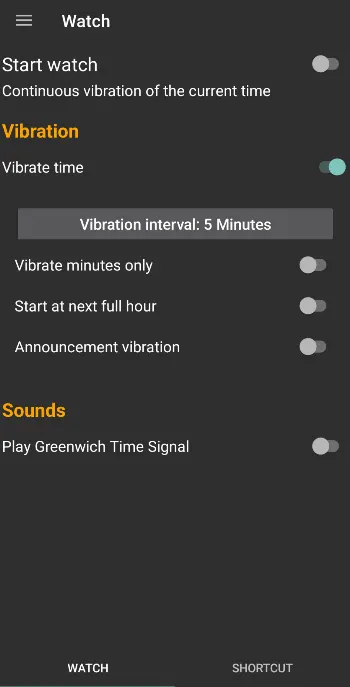
• Keep informed about the current time. The app can vibrate the current time automatically every X minutes or every hour.
• Play the Greenwich Time Signal at the start of each hour, similar to a radio station.
• Trigger time vibration with Tasker (see below for details)
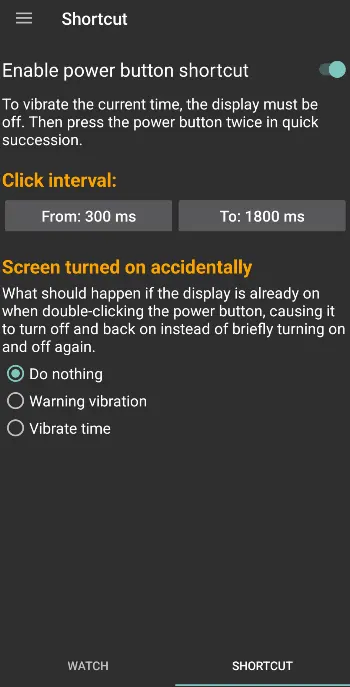
• Decide what to do if you double-click when the display is on. You can choose between a warning vibration and having the time vibrated as well.
• The app starts automatically after the system reboots.
Double-click conflict
TactileClock is triggered by clicking the power button twice in quick succession. This may conflict with the 'built-in' double-click action of your Android device. For example, a Google Pixel device will typically launch the camera when the power button is double-clicked; a Samsung device may take a screenshot when the power button is double-clicked.
If your device has a 'built-in' action when the power button is double-clicked, there are three options to get TactileClock working.
Option 1: Disable the 'built-in' double-click action of your device.
• Google Pixel: (Settings > System > Gestures > Quickly open camera)
• Samsung Galaxy: (Settings > Advanced Features > Side Button > Double Press)
• Other devices may require different settings to disable the double-click action.
Once the 'built-in' double-click action has been disabled, double-clicking the power button will trigger the TactileClock action.
Option 2: Configure TactileClock to trigger after a long double-click.
This will allow the 'built-in' double-click action to co-exist with the TactileClock double-click action.
1. Open TactileClock 2. Swipe left to show the 'Shortcut' screen. 3. Modify the 'Click Interval:'. 3a. Set 'From:' to be 500ms. 3b. Set 'To:' to be 1500ms. The From: and To: values specified above should work, but may need to be adjusted for optimal results on your device. Once configured, a fast double-click will trigger your devices 'built-in' action, while a slow double-click will trigger the TactileClock action.
Option 3: Use Tasker to trigger time vibration with custom events
How it works
Double-click the power button. This might take some practice to work reliably. Press slowly and deliberately. If you double-click too fast the system only recognizes a single click and turns the screen on instead.
The time vibration is structured as follows:
A short vibration stands for the digit 1 and a long one for the digit 5. The 2 is represented by two consecutive short vibrations, the 6 by a long and a short one and so on. The 0 constitutes an exception with two long vibrations.
Examples:
• 00:00 = -- --
• 01:18 = . . -...
• 02:51 = .. - .
• 10:11 = . -- . .
• 19:06 = . -.... -.
Explanation:
The time is processed digit by digit:
• . = short vibration
• - = long vibration
Leading zeros in the hour and minute fields are omitted.
Gaps:
To simplify the recognition of the vibration pattern, there exist three kind of gaps with different durations:
• []: A short gap between vibrations in the same digit
• [ ]: A medium gap for the separation of two digits within the hour and minute field
• [ ]: A long gap to split hours and minutes
Additional features
• Keep informed about the current time. The app can vibrate the current time automatically every X minutes or every hour.
• Play the Greenwich Time Signal at the start of each hour, similar to a radio station.
• Trigger time vibration with Tasker (see below for details)
• Decide what to do if you double-click when the display is on. You can choose between a warning vibration and having the time vibrated as well.
• The app starts automatically after the system reboots.
Double-click conflict
TactileClock is triggered by clicking the power button twice in quick succession. This may conflict with the 'built-in' double-click action of your Android device. For example, a Google Pixel device will typically launch the camera when the power button is double-clicked; a Samsung device may take a screenshot when the power button is double-clicked.
If your device has a 'built-in' action when the power button is double-clicked, there are three options to get TactileClock working.
Option 1: Disable the 'built-in' double-click action of your device.
• Google Pixel: (Settings > System > Gestures > Quickly open camera)
• Samsung Galaxy: (Settings > Advanced Features > Side Button > Double Press)
• Other devices may require different settings to disable the double-click action.
Once the 'built-in' double-click action has been disabled, double-clicking the power button will trigger the TactileClock action.
Option 2: Configure TactileClock to trigger after a long double-click.
This will allow the 'built-in' double-click action to co-exist with the TactileClock double-click action.
1. Open TactileClock 2. Swipe left to show the 'Shortcut' screen. 3. Modify the 'Click Interval:'. 3a. Set 'From:' to be 500ms. 3b. Set 'To:' to be 1500ms. The From: and To: values specified above should work, but may need to be adjusted for optimal results on your device. Once configured, a fast double-click will trigger your devices 'built-in' action, while a slow double-click will trigger the TactileClock action.
Option 3: Use Tasker to trigger time vibration with custom events
All versions
| Version | Released | Minimum Android | Size |
|---|---|---|---|
| 2.6.2 | Jun 23, 2026 | Android 6 | 6 MB |
| 2.6.1 | Jun 22, 2026 | Android 6 | 6 MB |
| 2.6.0 | Jan 18, 2026 | Android 5.0 | 5.7 MB |
How to install an older version of an Android app · How to install an APK file on Android
From the developer (GitHub)
APK files published by the developer on GitHub. They are signed by the developer and may not install over the other builds on this page (different signature). Links open github.com.
Similar apps
-
 World Clock v2
Offline time and online weather for 180+ cities with Material You design.
-
 Doable
Beautiful and easy to use Todo app
-
 To-Do Manager
Simple and minimalist To-Do Manager
-
 Note Calendar
An open-source note calendar app
-
 KüA-Plan
Access the KüA-Plan (self-organized acitivities schedule) of the CdE e. V.
-
 Shake Alarm Clock
Dismiss the alarm by simply shaking your phone!
-
 Floating Timer
Features both a countdown timer and stopwatch that will float over other apps.
-
 Work Tracker
 is designed to help you keep a record of your work hours.