
Recents
Launcher-agnostic "Recents" menu for Android.
- Developer
- tymwitko
- License
- GPL-3.0-only
- Package
com.tymwitko.recents- Category
- System
- Latest version
- 1.8.0 · Sep 11, 2026
- Minimum Android
- Android 7.1
Screenshots
Description
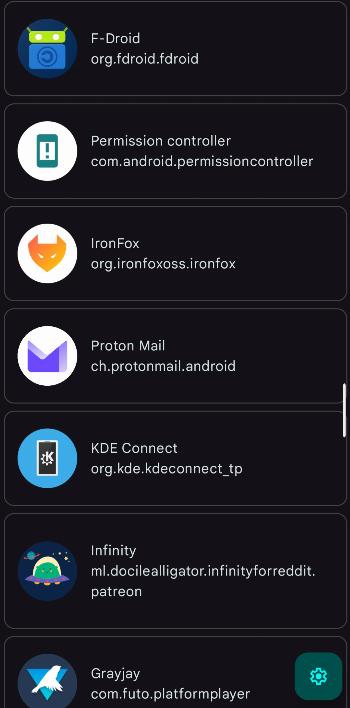
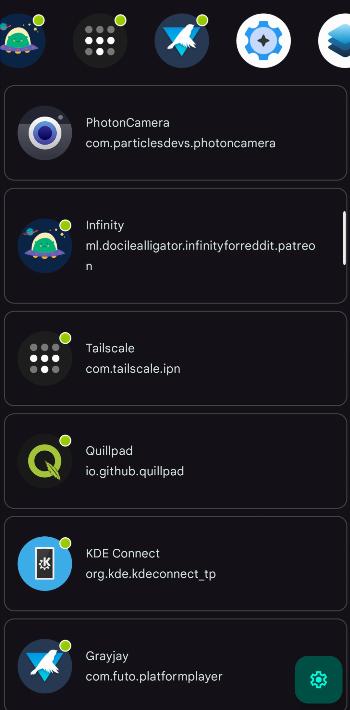
Recents is a replacement for the default system "recent apps" menu, especially useful if the system utility is unavailable (e.g. after removing the default launcher). It aims to provide all the system features, including launching the last launched app, displaying all apps by last use time and killing selected or all apps.
How to use
• Launch "Recent apps" screen Assign the app to a custom shortcut (e.g. double-click of the power button) in your system settings. Upon triggering the shortcut, you will be shown a list of all your apps, sorted by last launch time. Alternatively, you could simply place the app in a convenient spot in your launcher.
• Launch last app The app includes a custom shortcut, which (or its activity, LastAppActivity) can also be assigned to a custom shortcut, using any shortcut assigner. If you trigger the shortcut, you will be taken to the most recent app (excluding launchers and the current app), just like when double-tapping the "recents" button on a 3-button navbar.
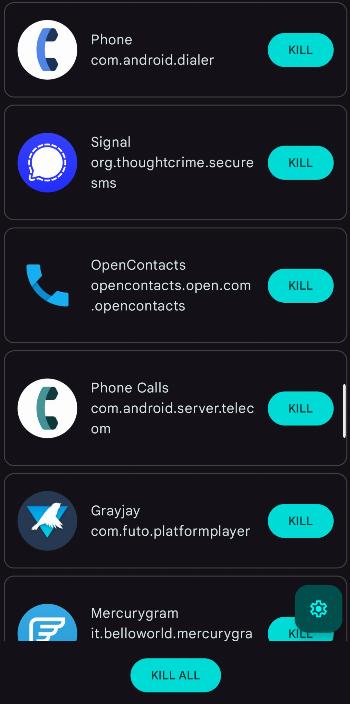
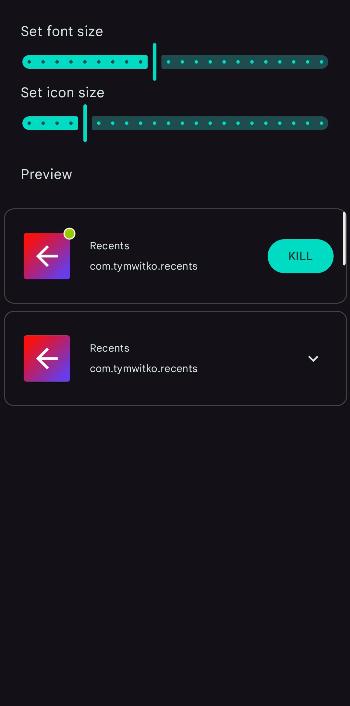
• Kill apps (Shizuku or root required) If you have Shizuku or root access, you may retain the functionality of killing apps. You can either kill apps individually, or use the "KILL ALL" button. Note: some system apps cannot be killed this way.
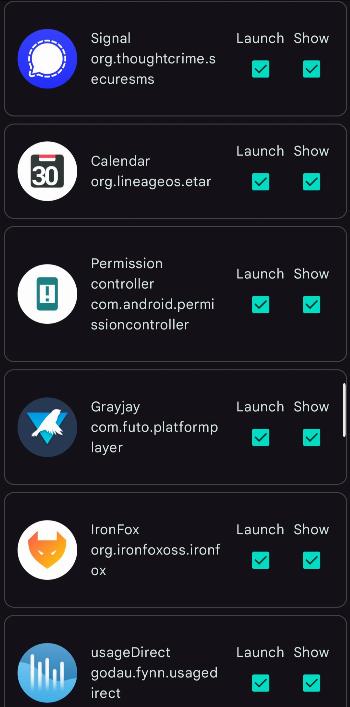
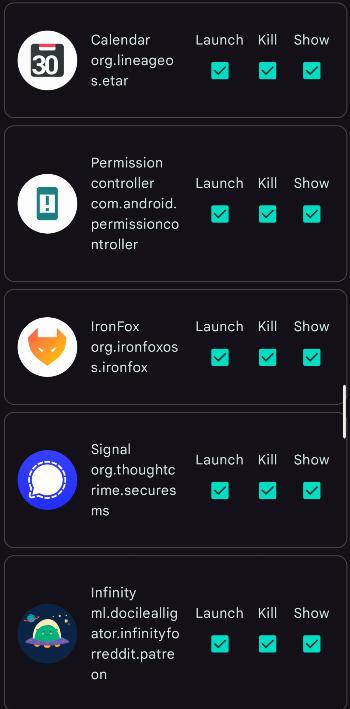
• Setup your custom whitelist Don't want to show a bunch of OEM bloat on the list? Don't want to kill your alarm clock? Don't want to launch an app even if it was the last one launched? Mark them in settings as non-showing, non-killable or non-launchable.
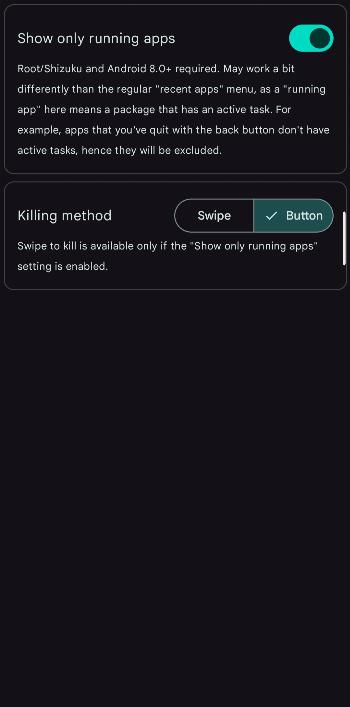
• Display running apps (Shizuku or root required) You may toggle between a full list of installed apps or just the running ones in settings. Bear in mind that "running apps" are defined by having an active task, which may be a bit different to how the system "recent apps" screen treats them.
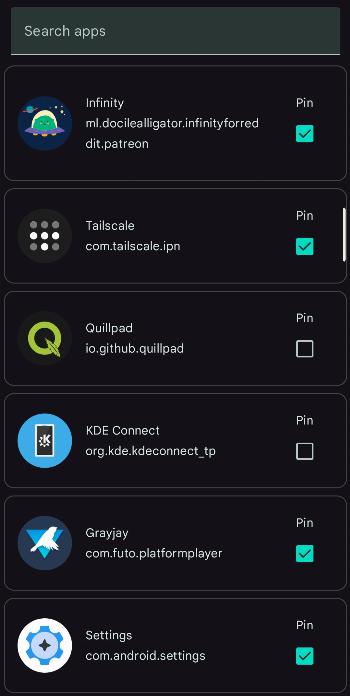
• Pin apps You may pin selected apps above the list. They will stay there regardless of their recency or their running status. Pinning an app doesn't mean that it's gone from the actual list and doesn't affect the "launch last app" functionality.
• Quick actions Upon holding a list item you can display a list of quick actions, including:
• launching app info
• uninstalling app
• launching app in split-screen mode
• launching app in free-form mode
• setting whitelist parameters (show/kill/launch)
How to use
• Launch "Recent apps" screen Assign the app to a custom shortcut (e.g. double-click of the power button) in your system settings. Upon triggering the shortcut, you will be shown a list of all your apps, sorted by last launch time. Alternatively, you could simply place the app in a convenient spot in your launcher.
• Launch last app The app includes a custom shortcut, which (or its activity, LastAppActivity) can also be assigned to a custom shortcut, using any shortcut assigner. If you trigger the shortcut, you will be taken to the most recent app (excluding launchers and the current app), just like when double-tapping the "recents" button on a 3-button navbar.
• Kill apps (Shizuku or root required) If you have Shizuku or root access, you may retain the functionality of killing apps. You can either kill apps individually, or use the "KILL ALL" button. Note: some system apps cannot be killed this way.
• Setup your custom whitelist Don't want to show a bunch of OEM bloat on the list? Don't want to kill your alarm clock? Don't want to launch an app even if it was the last one launched? Mark them in settings as non-showing, non-killable or non-launchable.
• Display running apps (Shizuku or root required) You may toggle between a full list of installed apps or just the running ones in settings. Bear in mind that "running apps" are defined by having an active task, which may be a bit different to how the system "recent apps" screen treats them.
• Pin apps You may pin selected apps above the list. They will stay there regardless of their recency or their running status. Pinning an app doesn't mean that it's gone from the actual list and doesn't affect the "launch last app" functionality.
• Quick actions Upon holding a list item you can display a list of quick actions, including:
• launching app info
• uninstalling app
• launching app in split-screen mode
• launching app in free-form mode
• setting whitelist parameters (show/kill/launch)
All versions
| Version | Released | Minimum Android | Size |
|---|---|---|---|
| 1.8.0 | Sep 11, 2026 | Android 7.1 | 2.6 MB |
| 1.7.4 | Aug 25, 2026 | Android 7.1 | 2.6 MB |
| 1.7.3 | Aug 12, 2026 | Android 7.1 | 2.6 MB |
How to install an older version of an Android app · How to install an APK file on Android
From the developer (GitHub)
APK files published by the developer on GitHub. They are signed by the developer and may not install over the other builds on this page (different signature). Links open github.com.
Similar apps
-
 Screenshot Tile (NoRoot)
Customizable screenshot tool with quick settings shortcut and floating button
-
 Coffee
Keep display awake
-
 Mute reminder
Remind you to mute media
-
 Prepaid Balance
Keep track your prepaid balance
-
 Auto Auto-Rotate
Automatically remembers your auto-rotate setting for every app
-
 Drowser
Simple background app killer
-
 Scrambled Exif
Remove the metadata from your pictures before sharing them
-
 WaveUp
Turn on the display by waving